Why Product Images Are Not the Only Reason WooCommerce Stores Slow Down
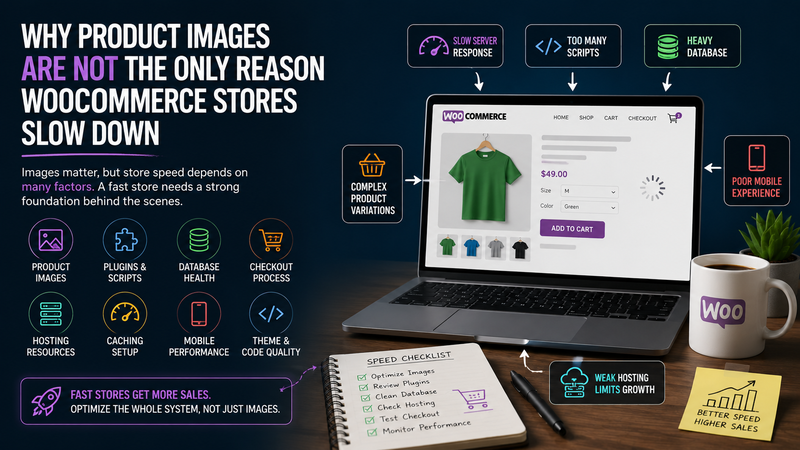
When a WooCommerce store feels slow, product images are usually the first thing people blame. That makes sense. Images are visible, easy to understand, and often heavy. A store with large product photos, gallery images, thumbnails, banners, and category visuals can definitely become slower if those files are not optimized.
But product images are not the whole story.
Many WooCommerce stores remain slow even after images are compressed, resized, converted to WebP, and lazy-loaded. That happens because WooCommerce performance depends on much more than what appears on the screen. Behind every product page, cart update, checkout step, search result, filter, coupon, and order action, the server is doing real work.
A fast WooCommerce store needs optimized images, but it also needs clean code, efficient plugins, a healthy database, strong caching, and hosting that can handle dynamic e-commerce activity.
Images Matter, But They Are Only One Layer
Product images can absolutely slow down a store. Large image files increase page weight, especially on product pages with multiple gallery photos. If a store uses uncompressed images directly from a camera or design tool, loading times can suffer quickly.
Image optimization usually includes:
resizing images before upload;
compressing files without destroying quality;
using modern formats like WebP;
adding lazy loading;
avoiding oversized thumbnails;
reducing unnecessary sliders or image-heavy sections.
These steps are important because they improve the front-end experience. They help pages load faster in the browser, especially on mobile devices and slower connections.
But here is the problem: image optimization mainly helps with what the visitor downloads. It does not automatically fix what the server has to process before the page is delivered.
That is why a store can have optimized images and still feel slow.
WooCommerce Is More Dynamic Than a Normal Website
A simple blog page is usually easier to cache and serve quickly. The content is mostly static. The same page can often be shown to many visitors without much server-side work.
WooCommerce is different.
An online store has dynamic elements that change depending on the visitor, cart, product availability, location, tax rules, shipping rules, coupons, payment options, and customer session. This makes performance more complicated.
WooCommerce may need to process:
product data;
product variations;
stock status;
prices;
cart contents;
user sessions;
shipping calculations;
tax rules;
coupon logic;
payment gateway scripts;
customer account data;
order information.
This means a slow WooCommerce store is not always slow because the page is visually heavy. Sometimes it is slow because the server, database, plugins, and checkout process are working too hard.
Product Variations Can Add Hidden Weight
Product variations are one of the most common hidden causes of WooCommerce slowdown. A simple product page may load quickly. But a product with many sizes, colors, materials, bundles, or custom options can become much heavier.
For example, a shirt with 5 sizes and 8 colors creates many possible combinations. A more complex product may have dozens or even hundreds of variations. Each variation may include price differences, stock status, images, SKU data, shipping details, and availability rules.
The visitor may only see a simple dropdown menu, but behind that menu there can be a lot of data.
This can affect:
product page loading;
admin editing speed;
database queries;
cart behavior;
filtering;
inventory management.
If your store has many variable products, image compression alone will not solve the issue. You may need to simplify variation logic, reduce unnecessary options, clean product data, or improve hosting resources.
Plugins Can Slow Down the Whole Store
WooCommerce stores often rely on many plugins. Some are necessary. Others are added over time for small features: badges, upsells, popups, reviews, filters, analytics, coupons, subscriptions, email marketing, tracking pixels, wishlists, live chat, currency switching, and more.
Each plugin may add scripts, styles, database queries, admin processes, or checkout logic. One plugin may not be a problem. But many plugins together can create a heavy stack.
This becomes especially noticeable when plugins affect important pages such as:
product pages;
category pages;
cart;
checkout;
account pages;
admin dashboard.
A plugin that only adds a small front-end feature may still create background processing or database load. A store owner may not see that directly, but visitors feel the result when pages respond slowly.
The question is not only “How many plugins do I have?” A better question is: which plugins affect the store’s most important actions?
A slow checkout plugin is more dangerous than a minor design plugin on a low-traffic page.
The Database Can Become a Bottleneck
WooCommerce stores depend heavily on the WordPress database. Products, orders, customers, variations, coupons, sessions, settings, and many plugin features all rely on database activity.
Over time, the database can become larger and less efficient. This can happen because of:
many products;
many product variations;
large order history;
expired transients;
old cart sessions;
post revisions;
unused plugin tables;
logs;
abandoned plugin data;
bloated metadata.
When the database becomes heavy, the store can slow down even if the design looks clean. Product pages may take longer to generate. Checkout may feel delayed. Admin pages may become frustrating. Product search and filtering may respond slowly.
This is why WooCommerce performance is not only a front-end issue. It is also a database issue.
Cleaning the database can help, but it should be done carefully. Store data is sensitive. Orders, customer records, and product details should never be deleted without backups and a clear plan.
Checkout Is a Special Performance Problem
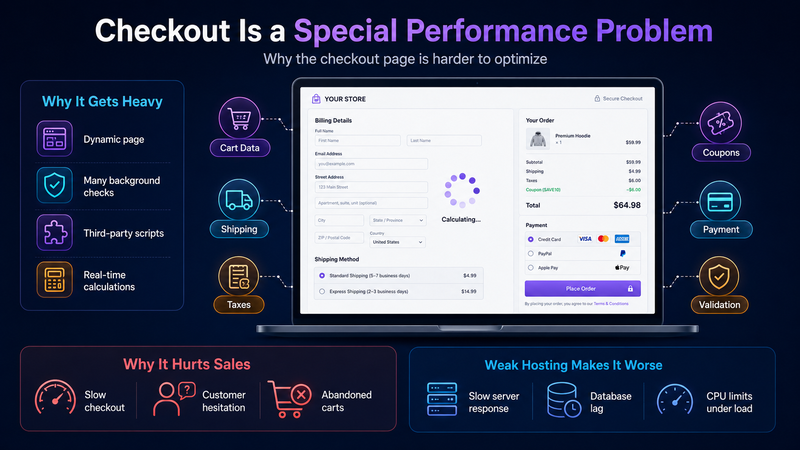
Checkout is one of the most important pages in any WooCommerce store. It is also one of the hardest pages to optimize because it cannot be treated like a normal static page.
Checkout often includes:
cart data;
customer details;
shipping options;
tax calculations;
coupon checks;
payment gateways;
fraud checks;
address validation;
order creation;
email triggers;
third-party scripts.
A slow checkout is not just a technical problem. It can become a revenue problem. When checkout feels slow, unstable, or confusing, customers may hesitate. Some may abandon the order completely.
This is where weak hosting can become visible. If the server response time is poor, the database is slow, or CPU limits are reached during busy periods, the checkout experience can suffer directly.
Image optimization will not fix that.
Caching Helps, But It Has Limits
Caching is one of the most useful tools for improving WordPress performance. It can reduce server work and make pages load faster. But WooCommerce caching requires more care than a regular blog or brochure website.
Some pages can be cached effectively, such as many product pages, category pages, and informational pages. But other parts of the store must remain dynamic.
You usually need to be careful with caching for:
cart;
checkout;
account pages;
personalized prices;
user-specific offers;
recently viewed products;
stock-sensitive pages;
location-based shipping or taxes.
Bad caching can create serious problems. Customers may see incorrect cart contents, outdated stock information, or broken checkout behavior. So the goal is not simply to “cache everything.” The goal is to cache what can be cached safely while keeping dynamic store functions reliable.
This is another reason WooCommerce speed depends on the whole setup, not only image size.
Hosting Resources Matter More as the Store Grows
A small WooCommerce store can often run on a basic hosting plan in the beginning. If traffic is low, product count is small, and plugins are minimal, the store may feel acceptable.
But as the store grows, the pressure increases.
More visitors mean more requests. More products mean more database activity. More orders mean more checkout processing. More plugins mean more scripts and queries. More marketing campaigns mean traffic spikes. More admin work means more backend load.
At some point, the store may outgrow its original hosting setup.
Signs that hosting may be part of the problem include:
slow server response time;
checkout delays during traffic spikes;
frequent admin slowness;
database timeouts;
unstable performance;
CPU or memory limit warnings;
slow product editing;
cart or checkout errors under load.
Image optimization is important, but it cannot fix weak server resources, slow database response, or checkout instability. For WooCommerce stores, hosting is part of the performance system. Here is a practical guide on choosing the right WooCommerce hosting setup:
https://medium.com/@volodymyrzh/hosting-for-woocommerce-stores-how-to-choose-the-right-setup-for-speed-and-sales-bac7afd12358
Mobile Performance Makes Every Problem More Visible
Many shoppers browse WooCommerce stores on mobile devices. This makes performance even more important because mobile users often deal with smaller screens, weaker processors, unstable connections, and shorter attention spans.
Large images hurt mobile performance, but so do heavy scripts, slow server responses, complex layouts, and too many third-party tools.
A mobile shopper may not know why the store feels slow. They only experience the delay. Product filters take too long. Add-to-cart feels unresponsive. Checkout fields lag. Payment confirmation is slow. The store feels less trustworthy.
That is why performance should be measured from the customer’s point of view, not only from a technical dashboard.
A store can have good image scores and still feel slow if the user journey is heavy.
Admin Speed Also Matters
Store owners often focus only on customer-facing speed. But WooCommerce admin performance also matters.
If the admin dashboard is slow, daily operations become harder. Editing products, managing orders, updating stock, checking reports, and handling customer issues can all take more time.
Admin slowness can come from:
too many orders;
heavy plugins;
bloated database tables;
slow hosting;
background tasks;
inefficient reports;
large product catalogs;
excessive scheduled actions.
A slow admin area may not directly affect a customer on the front end, but it affects the business. It wastes time, makes updates harder, and increases the risk that important maintenance is delayed.
If the backend is slow, it is often a sign that the store’s technical foundation needs attention.
Third-Party Scripts Can Add Delay
Many WooCommerce stores use third-party tools for analytics, advertising, chat, reviews, email capture, heatmaps, tracking, personalization, and payment processing.
These tools can be useful, but they also add external scripts. If too many scripts load on important pages, the store may become slower or less stable.
Common examples include:
ad pixels;
analytics tags;
live chat widgets;
review widgets;
popups;
email marketing forms;
social proof tools;
affiliate tracking;
payment scripts.
The problem is not that these tools are always bad. The problem is that each one adds weight and complexity. Store owners should regularly ask whether each script is still useful and whether it belongs on every page.
A script that helps conversions may be worth keeping. A script that adds delay without clear value should be removed or limited.
How to Diagnose the Real Cause of Slow WooCommerce Performance
If your WooCommerce store is slow, do not assume the cause immediately. Start by checking multiple layers.
A practical diagnosis should include:
image sizes and formats;
page weight;
number of plugins;
theme performance;
server response time;
database size;
product variation complexity;
checkout speed;
cart behavior;
mobile performance;
third-party scripts;
hosting limits;
traffic patterns.
The goal is to find the real bottleneck. Sometimes images are the main problem. Sometimes they are only one small part of a larger issue.
A good performance review separates front-end problems from server-side problems. Front-end problems affect what the browser loads. Server-side problems affect how quickly the store generates and delivers pages.
WooCommerce usually needs both sides to be healthy.
A Better Way to Think About WooCommerce Speed
Instead of asking, “Are my images optimized?” ask a broader question:
Is my store’s whole performance system healthy?
That system includes:
optimized images;
lightweight design;
clean theme;
necessary plugins only;
efficient database;
safe caching;
stable checkout;
strong hosting;
mobile-friendly layout;
regular monitoring.
This mindset is more useful because WooCommerce performance is connected. A weak part of the system can affect everything else.
Fast product images are helpful. But if checkout is slow, the store still loses trust. A clean theme is helpful. But if hosting is underpowered, the store may still struggle under traffic. Caching is helpful. But if configured badly, it can break dynamic shopping features.
The best WooCommerce stores are not fast because of one trick. They are fast because the whole setup is built for e-commerce.
Conclusion
Product images are important, but they are not the only reason WooCommerce stores slow down. Images affect page weight and visual loading, but WooCommerce performance also depends on product variations, plugins, database health, checkout logic, caching, third-party scripts, mobile experience, admin speed, and hosting resources.
If a store is small, image optimization may produce a noticeable improvement. But as the store grows, deeper performance issues often appear. The business needs more than compressed images. It needs a technical foundation that can support products, traffic, orders, and sales.
A slow WooCommerce store should be treated as a system problem, not a single-file problem.
Optimize the images. But also check the database. Review plugins. Test checkout. Watch mobile speed. Monitor hosting limits. Clean what is unnecessary. Upgrade what is too weak.
That is how a WooCommerce store becomes not only lighter, but stronger.
Comments
No comments yet. Be the first to comment!