What WooCommerce Store Owners Should Monitor Every Week
Running a WooCommerce store is not only about adding products, checking orders, and launching promotions. A store can look fine on the surface while small technical problems slowly build in the background.
A checkout delay may appear before a big sale. A plugin update may create a conflict. Product pages may become heavier over time. The database may grow quietly. Mobile users may experience slower loading than desktop users. Hosting limits may start affecting the store before the owner clearly notices the pattern.
That is why weekly monitoring matters.
You do not need to perform a deep technical audit every day. But once a week, it is smart to check the areas that directly affect speed, stability, sales, and customer trust.
Start With Store Speed
Speed is one of the first things to monitor because it affects almost everything else. If your WooCommerce store becomes slower, visitors may browse fewer products, hesitate during checkout, or leave before completing the order.
Weekly speed monitoring does not have to be complicated. You can check a few important pages:
homepage;
main category page;
popular product page;
cart page;
checkout page;
mobile version of the store.
The goal is not to chase a perfect score. The goal is to notice changes. If a page that usually loads quickly suddenly feels slow, something may have changed. It could be a new plugin, heavier images, a theme update, tracking scripts, database growth, or hosting pressure.
Speed should be checked from a real shopper’s point of view. Open the store on mobile. Browse a category. Open a product. Add something to the cart. Try the checkout flow. If the experience feels slow to you, it may feel even worse to customers.
Check Checkout Performance
Checkout is one of the most important parts of a WooCommerce store. It is also one of the most sensitive. A product page can be slightly slow and still recover, but a slow or unstable checkout can directly affect revenue.
Every week, test the checkout process like a customer.
Check whether:
cart updates work correctly;
shipping options load properly;
coupon fields respond normally;
payment methods appear;
checkout fields are not lagging;
order review updates correctly;
there are no confusing errors;
the final order step feels stable.
Checkout is different from a normal static page because it depends on cart data, customer details, shipping rules, tax calculations, coupons, payment gateways, and sometimes third-party services. That makes it heavier and more fragile than many other pages.
A slow checkout is not just a performance issue. It can become a trust issue. If the payment page feels delayed or broken, customers may stop before completing the order.
Monitor Cart Abandonment Signals
Not every abandoned cart is caused by a technical problem. Some shoppers compare prices, change their minds, or leave because shipping costs are too high. But if cart abandonment increases suddenly, it is worth checking whether the store experience has changed.
A weekly review can help you notice patterns.
Look for signs such as:
more people adding products but not reaching checkout;
more people reaching checkout but not completing payment;
more failed payment attempts;
more customer support questions about checkout;
more complaints about coupon codes;
more mobile users leaving before payment.
These signals do not always reveal the exact cause, but they show where to investigate. Sometimes the problem is technical. Sometimes it is pricing, shipping, trust, or unclear information.
The important thing is to notice the trend before it becomes normal.
Review Product Images and Media
Product images are important for both sales and performance. They help customers understand the product, but they can also make pages heavier if they are not managed well.
Each week, review newly uploaded images. Store teams often optimize old images once, then forget that new product photos keep coming in. Over time, large images return.
Check whether new images are:
resized before upload;
compressed properly;
using suitable formats;
not larger than necessary;
consistent across product pages;
not duplicated unnecessarily.
However, images are not the only reason WooCommerce stores slow down. A store can still feel slow because of plugins, checkout logic, product variations, database growth, scripts, caching problems, or weak hosting. For a deeper breakdown of this issue, read this related article:
https://digitalowl.fika.bar/why-product-images-are-not-the-only-reason-woocommerce-store-01KRC3E82WKVXVP8TR9VHZAE98
The main point is simple: optimize images, but do not blame images for every performance problem.
Watch Plugin Changes Carefully
WooCommerce stores often depend on plugins for payments, shipping, analytics, SEO, security, marketing, reviews, product options, subscriptions, coupons, and design features. Plugins are useful, but they can also create conflicts or slow down the store.
A weekly plugin review should answer three questions.
First, were any plugins updated recently?
Second, did store performance change after the update?
Third, are all active plugins still necessary?
You do not need to remove useful tools just to reduce the plugin count. The real issue is whether each plugin still provides enough value to justify the load it adds.
Pay special attention to plugins that affect:
checkout;
payment gateways;
shipping calculations;
product variations;
product filters;
popups;
analytics;
live chat;
security;
caching.
A small plugin on a low-impact page may not matter much. A heavy plugin on checkout can matter a lot.
Check Hosting Resource Usage
Hosting is easy to ignore when the store is small. But as traffic, products, orders, and plugins grow, hosting becomes more important. A WooCommerce store needs more than basic page delivery. It needs stable processing power for dynamic shopping actions.
Each week, check whether your hosting account shows signs of pressure.
Look for:
CPU limit warnings;
memory usage spikes;
slow server response;
database errors;
timeout messages;
high resource usage during promotions;
slow admin dashboard;
unstable checkout during traffic peaks.
These signs may mean the store is outgrowing its current setup. Sometimes better optimization helps. But if the hosting plan cannot provide enough consistent resources, optimization alone may not solve the problem.
Weekly monitoring helps you notice when your store is outgrowing its current setup. If CPU limits, slow admin pages, checkout delays, or unstable performance appear regularly, it may be time to review your hosting. This guide can help you understand what a stronger WooCommerce setup should include:
https://medium.com/@volodymyrzh/hosting-for-woocommerce-stores-how-to-choose-the-right-setup-for-speed-and-sales-bac7afd12358
Test Mobile Shopping Experience
Mobile performance should be checked every week because many customers browse and buy from phones. A store may feel acceptable on desktop but frustrating on mobile.
Mobile users are more sensitive to:
slow loading;
layout shifts;
small buttons;
heavy images;
popups;
complicated menus;
long checkout forms;
delayed payment pages.
Do not only check technical scores. Use the store like a real shopper. Open it on a phone. Search for a product. Use filters. Add to cart. Try checkout. Notice whether anything feels slow, crowded, or confusing.
Mobile problems can quietly reduce sales because customers may leave without reporting anything. They simply do not finish the purchase.
Review Product Search and Filters
Search and filtering are important for stores with more than a few products. If customers cannot find what they need, they may leave even if the products are good.
Every week, test common search terms and category filters.
Check whether:
search results are relevant;
filters respond quickly;
product categories make sense;
out-of-stock products are handled clearly;
sorting works correctly;
mobile filters are easy to use;
product variations appear correctly.
Search and filtering can also affect performance. Complex filters may create database load, especially on stores with many products, attributes, or variations. If category pages are slow, filters may be part of the problem.
Look at Uptime and Error Reports
A store that is down for even a short time can lose sales and trust. Weekly uptime monitoring helps you catch problems that may happen when you are not browsing the site yourself.
Check whether there were:
downtime events;
server errors;
payment errors;
database connection issues;
failed scheduled actions;
security alerts;
broken pages;
failed order notifications.
Even if downtime is brief, repeated incidents are a warning sign. A WooCommerce store should be stable, especially during campaigns, seasonal demand, or high-traffic periods.
Error logs can also reveal issues before customers complain. If the same error appears repeatedly, it should be investigated.
Check Admin Dashboard Speed
The customer-facing store matters most, but the admin area matters too. A slow WooCommerce dashboard makes daily work harder and can signal deeper technical problems.
Each week, check how the backend feels when you:
open the orders page;
edit a product;
update stock;
view reports;
process refunds;
manage coupons;
search customers;
update product variations.
If admin pages are getting slower, the cause may be database growth, plugin load, scheduled actions, order history, or hosting limitations.
Admin slowness wastes time. It also makes store management more frustrating. If the backend becomes too slow, important maintenance may be delayed, which can create bigger problems later.
Review Security and Updates
Security should be part of weekly store monitoring. WooCommerce stores handle customer data, payments, orders, and account activity, so they need regular attention.
Each week, check:
WordPress updates;
WooCommerce updates;
plugin updates;
theme updates;
security plugin alerts;
suspicious login attempts;
admin user accounts;
backup status;
SSL status.
Updates should not be ignored, but they should also be handled carefully. For important stores, it is safer to test major updates before applying them to the live site.
Backups are especially important. A backup is only useful if it exists, is recent, and can be restored. Do not assume backups are working. Confirm them.
Watch Database Growth
WooCommerce databases grow naturally. Orders, products, variations, sessions, logs, scheduled actions, and plugin data can all add weight over time.
Weekly database monitoring does not mean deleting things randomly. It means watching for unusual growth and knowing when cleanup may be needed.
Pay attention to:
old transients;
expired sessions;
logs;
post revisions;
unused plugin tables;
scheduled actions;
abandoned plugin data;
large order metadata.
Database cleanup should be done carefully, with backups. The goal is not to remove useful store data. The goal is to prevent unnecessary bloat from slowing down the store.
A healthy database helps product pages, checkout, admin actions, and reports work more smoothly.
Check Key Business Metrics Together With Technical Metrics
Technical monitoring is useful, but it becomes more powerful when connected to business metrics.
For example, a slight speed drop may not seem serious until you notice that conversion rate also declined. A checkout delay may look like a technical detail until abandoned carts increase. A mobile layout problem may seem small until mobile revenue falls.
Each week, compare technical signals with business signals:
traffic;
conversion rate;
cart abandonment;
average order value;
checkout completion;
failed payments;
mobile sales;
refund requests;
customer support messages.
This helps you understand which technical issues deserve priority. Not every small problem has the same business impact. Focus first on issues that affect checkout, product discovery, trust, and revenue.
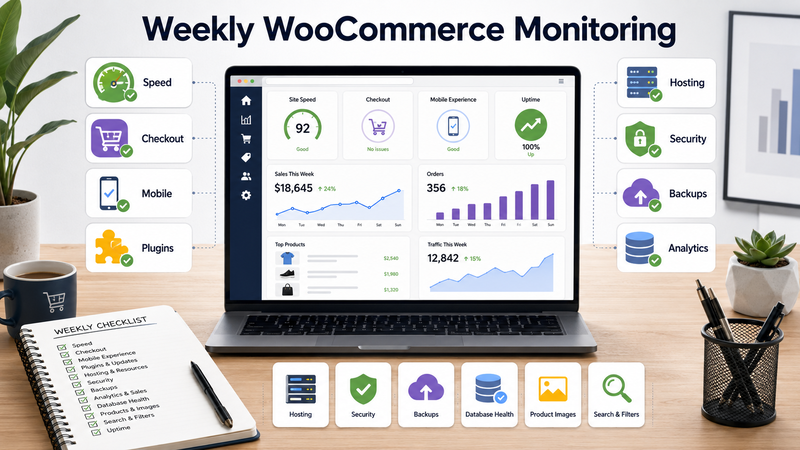
A Simple Weekly WooCommerce Monitoring Checklist
A practical weekly routine can be simple. You do not need to audit everything deeply every time. You just need to notice early warning signs.
Use this checklist:
Test homepage, category, product, cart, and checkout speed.
Complete a test checkout flow.
Review cart abandonment patterns.
Check newly uploaded product images.
Review recent plugin updates.
Look at hosting resource usage.
Test the store on mobile.
Check search and filters.
Review uptime and errors.
Test admin dashboard speed.
Confirm backups are working.
Review security alerts.
Watch database growth.
Compare technical issues with sales metrics.
This routine can prevent many problems from becoming emergencies.
Conclusion
WooCommerce store owners should monitor their stores every week because performance problems rarely appear all at once. They build gradually through heavier images, more plugins, larger databases, complex checkout logic, traffic growth, hosting limits, and small technical issues that are easy to miss.
A weekly review helps you protect the parts of the store that matter most: speed, checkout, mobile experience, stability, security, and revenue.
You do not need to be obsessed with every technical detail. But you do need a regular habit of checking what customers experience and what the store depends on behind the scenes.
A WooCommerce store is not just a website. It is a sales system. And systems work better when they are monitored before they break.
Comments
No comments yet. Be the first to comment!